How to end a Black Friday sale on Shopify without breaking your prices
Starting a sale takes five minutes. Ending it is where stores get hurt: products still "on sale" in January, prices that came back a few dollars short, a price you fixed on Saturday overwritten on Tuesday. Here's how to end a sale cleanly, whichever way you ran it.
Short answer: a Shopify discount ends by itself at its end date. Sale prices on the products don't: put back each variant's exact old price and compare-at price, from a record made before the sale (an undo history, or a CSV export). Never reverse a sale with a percentage, and check products that changed during the sale one by one.
First: how did you run the sale?
| How the sale was made | How it ends | What can go wrong |
|---|---|---|
| Shopify discount (automatic or code) | By itself at the end date under Active dates | No end date set, or a code shared online that keeps working |
| Sale prices edited by hand or in bulk | Only when someone puts the prices back | Wrong prices, compare-at left behind, newer edits overwritten |
| Sale prices via CSV import | Re-import the pre-sale prices | The re-import overwrites everything else in the file that changed since |
| A scheduled sale in an app | The app puts prices back at the end time | Check the result: what was put back and what was skipped |
The four ways prices break
1. Compare-at prices left behind
If the price goes back but the compare-at price stays, the product shows a struck-through "was" price that's lower than, or equal to, what it costs now, or it looks like it's on sale forever. Shoppers notice, and in some countries a permanent "was" price breaks pricing rules. The fix isn't clearing every compare-at price either: products that were on sale before Black Friday should keep theirs.
2. Reversing with a percentage
20% off $50 is $40. Adding 20% back gives $48, not $50. Even the right reverse (25%) fails once prices were rounded to .99. Every variant needs its exact old price back, not a calculation.
3. Products that changed during the sale
You fixed a price on Saturday, added a new product on Sunday, or a variant sold out and you changed it. Re-importing the whole pre-sale file, or undoing blindly, puts those back to their old state too.
4. Only part of the catalog came back
Big edits can stop halfway: a timeout, a closed laptop, an app limit. Some products go back, some don't, and nothing tells you which.
Step by step
- Find out how the sale was made. A discount (Discounts page) needs only an end date. Sale prices changed on the products need every variant's price and compare-at price put back.
- Get the old values. Use the record of what each variant cost before the sale: the edit's History in an app, or the product CSV you exported before the sale. Don't work it out with a reverse percentage.
- Put the prices back. Undo the sale edit, or re-import only the price columns from the pre-sale CSV. Restore the compare-at price to what it was, which for most products is empty.
- Check what changed during the sale. Products added, repriced or edited by hand during the sale need a decision each: keep the new value or set it back.
- Check the store. Open your best sellers and a few collection pages: no struck-through prices where there shouldn't be, and the prices you expect.
If you only use a CSV: keep the export from before the sale untouched. When you re-import, keep only the columns that identify each variant and its Variant Price and Variant Compare At Price, and test on a few products first, so nothing else in the file overwrites newer changes.
How it works in Catalogist
Catalogist keeps every variant's old values for each edit, so ending a sale is putting those back, not working them out.
- A scheduled sale (Pro, 14-day free trial) ends by itself: at the end time, Catalogist undoes it and every price and compare-at price goes back. The Scheduled changes page shows how many products were put back and how many were skipped.
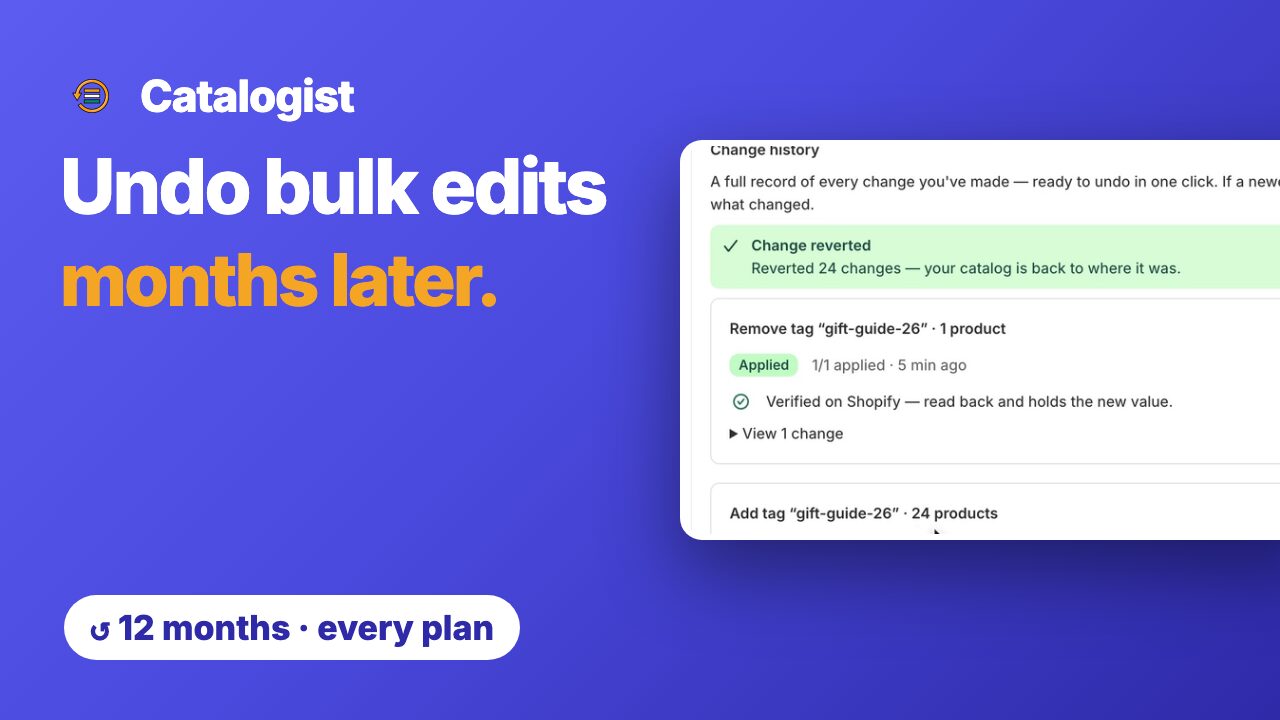
- A sale applied straight away can be undone from History in one click, on every plan, for 12 months after it ran.
- Products changed during the sale are skipped, not overwritten, and the result shows how many were skipped.
- Ending early: press End now and undo on the Scheduled changes page.
Disclosure: I build Catalogist. The steps above work with any tool, as long as you keep the old values.
After the sale: a 5-minute check
- Open your 10 best sellers: is each price what it was before the sale?
- Open your main collection pages: struck-through prices only where you meant them.
- On the Discounts page, check that sale discounts show as expired, and turn off any code you shared publicly.
- Look at products added or repriced during the sale, one by one.
- Keep the pre-sale CSV until you're sure: it's your copy of what prices were.
Questions
How do I end a sale on Shopify?
It depends how you made it. A discount ends by itself at the end date under Active dates, or you can deactivate it on the Discounts page. Sale prices set on the products themselves stay until you change them back: undo the edit, re-import the price columns from a CSV you exported before the sale, or use an app that ends the sale on a schedule.
How do I remove compare-at prices after a sale?
Set each variant's compare-at price back to what it was before the sale, which for most products means empty. Don't clear every compare-at price in the store: products that were already on sale before Black Friday had one, and should keep it.
Can I raise prices by the same percentage to undo a sale?
No. 20% off a $50 product makes it $40, and adding 20% to $40 makes $48, not $50. To reverse a percentage you'd need 25%, and rounding to .99 breaks even that. Put back the exact old price for each variant instead.
What if I changed a product's price during the sale?
Decide product by product. Undoing the whole sale would overwrite your newer price. Catalogist's undo skips products that changed after the edit, so your newer price stays, and the result shows how many were skipped.
Should I export a CSV before Black Friday?
Yes, whatever tool you use. In Shopify admin, go to Products and export all products as a CSV. It holds every variant's price and compare-at price, so you always have a copy of what prices were before the sale.
Can I extend a sale that's already running?
Yes. For a discount, change its end date. For a sale scheduled in Catalogist, end it with End now and undo and schedule a new one with the later end, rather than editing prices by hand while it runs.
End this year's sale with one click
Schedule it to undo itself, or undo it from History. Every old price, back exactly.
Add to Shopify, free